
HOW TO CREATE EVENTS
From the “Your Store’s Games” section of your store page find Neuroscape. Click the orange button below that says create event.
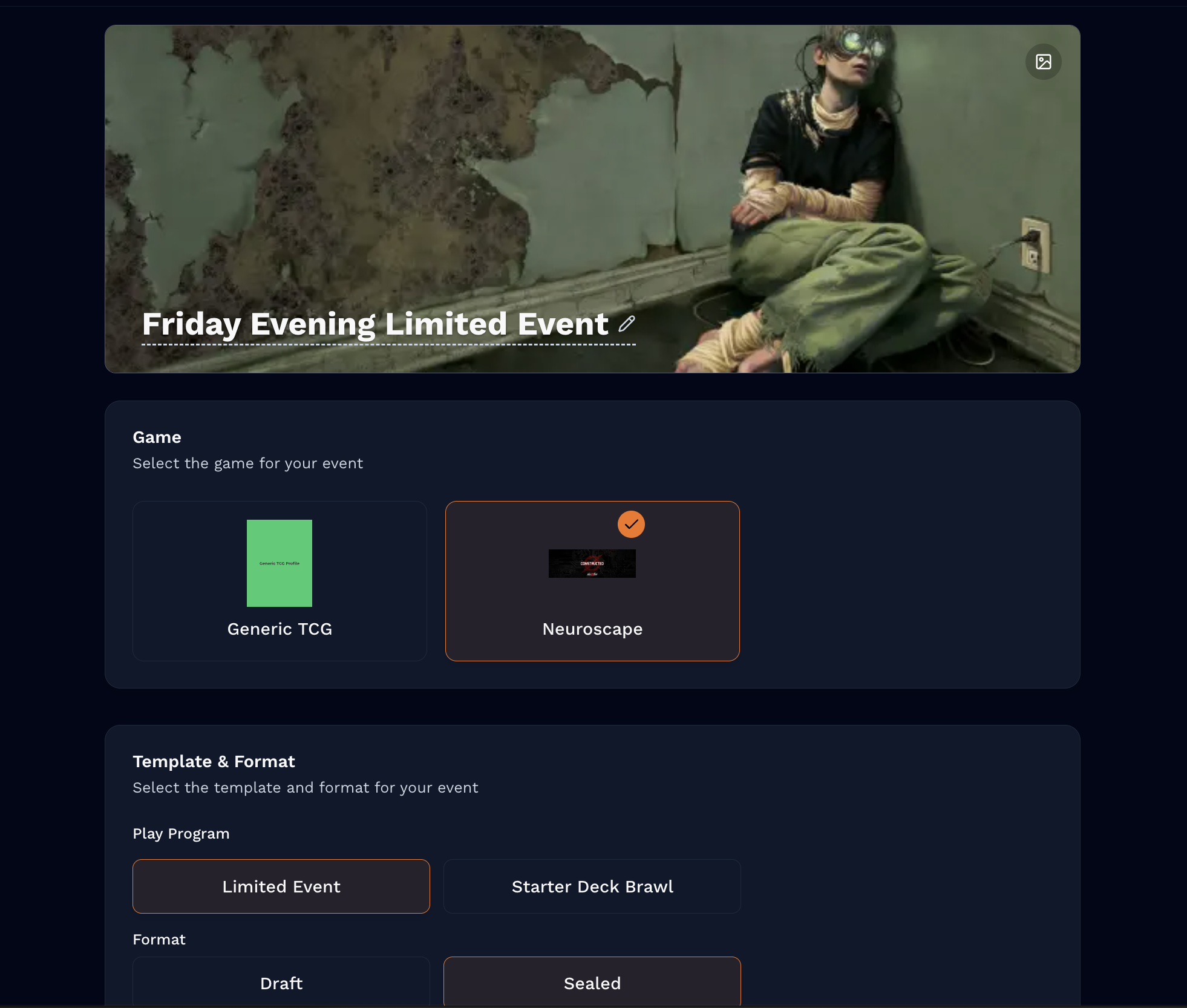
In the next page you can configure the settings for your event. You can give it a name, select a banner image, and choose from a selection of event templates, and formats.
Here are some of the event templates available:
CONSTRUCTED
This is a format event where players bring their own pre-constructed decks to battle against each other. All decks must follow standard deckbuilding and sideboard rules. You can find a full breakdown of those rules on pages 46-47 of the official rulebook.
Play will take place with 3 rounds of of Swiss pairing. Stores can configure the event after creating to choose best of 1 for a shorter, more casual event, or best of 3 for a longer more competitive event
Limited
This is a format where players open booster packs, build decks with the contents, then battle with these decks.
Stores have the option to choose sealed or draft formats for these events. For release events we generally recommend sealed as it’s a bit more casual and easier for new players, but if you think your players would prefer to draft then go for it!
An overview of the rules for our limited formats is available here
https://www.neuroscapetcg.com/limitedformats
Play will take place with 3 rounds of of Swiss pairing. Stores can configure the event after creating to choose best of 1 for a shorter, more casual event, or best of 3 for a longer more competitive event
Starter Deck Brawl
This is a casual format where players battle with 1 of the 6 pre-constructed starter decks. The store can provide these starter decks to players or they can ask players to bring their own. Starter decks used in these events must use the original decklists and may not be modified
Play will take place with 3 rounds of of Swiss pairing. Stores can configure the event after creating to choose best of 1 for a shorter, more casual event, or best of 3 for a longer more competitive event
After selecting a template and format for the event, enter the details of the event such as
Date and Time
Cost
Capacity
Player Check-In Settings
Some helpful info about sign up fees. You can collect sign up fees digitally when players sign up for the event. If you want to collect payment this way, you will first need to have your payment information connected to your account via Stripe.
To do this click the “organization settings” button on the lower left hand corner of the screen.
Then, on that page, below your store information, select the payments tab and click “Set up Stripe Payment” to connect your payment information with Stripe.
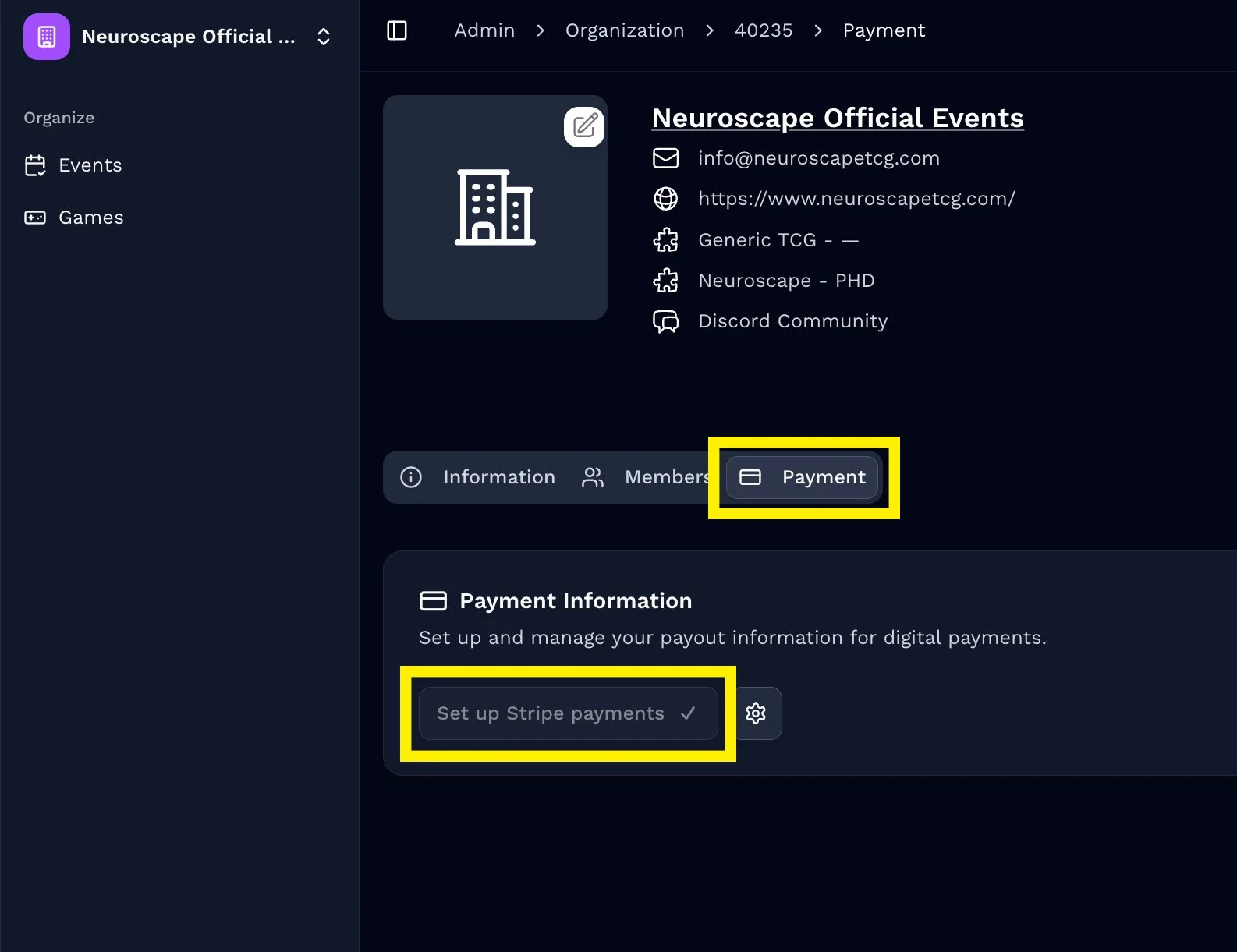
Once your payment information has been verified, you can enable digital payment by going into the Settings tab of an exisitng event and turning on Collect Digital Payments.
If you prefer not to collect sign up fees digitally, you can just leave this option turned off and collect fees through other means.
Once the settings of the event have been filled in, click the orange create event button at the bottom of the page to make the event live!